The Breakdown
Upcoming hardcore, punk, emo, and indie shows across SoCal — all in one calendar.
Two ways to get it. Pick the one that sounds like you.
Way 1
No calendar? Put it on your home screen
No calendar, no account, nothing to sign up for. This makes a little fake app — an icon on your home screen. Tap it anytime and the show list opens, always up to date.
Open the show listThen save it — steps are right under this button
iPhone — any browser
Four steps, about ten seconds:
- Tap Open the show list above — whatever browser you use is fine.
- Tap the Share button — the square with the arrow pointing up. In Safari it’s at the bottom of the screen; in Chrome it’s up by the address bar.
- In Safari this part is nested: scroll the menu that pops up until you see Add to Home Screen, then tap it. In Chrome it’s right in the first menu — no digging.
- Tap Add in the top corner.
Done. There’s an icon on your home screen now — name it The Breakdown if it asks. Works the same in Safari, Chrome, and Firefox — Add to Home Screen lives in the Share menu in all of them.
Android — Chrome
Three steps, about ten seconds:
- Tap Open the show list above — in Chrome.
- Tap the three dots (⋮) in the top corner.
- Tap Add to Home screen — it’s right in that first menu, nothing nested. On some phones it says Install app — then confirm.
Done. The icon sits on your home screen like any other app. It’s just a shortcut — delete it anytime, nothing’s installed for real. On Firefox, Samsung Internet, or Opera it’s the same idea — look in the menu for Add to Home screen or Install.
Using a different browser?
iPhone — Opera, Edge, Brave: open the show list, tap Share, then Add to Home Screen — same as the iPhone steps above. If your browser doesn’t show that option, open the link in Safari and do it from there.
Android — Firefox, Samsung Internet, Opera, Brave: open the show list, open the browser menu (three dots or three lines), and tap Add to Home screen. Samsung calls it “Add page to” → Home screen.
Computer — Chrome or Edge: click the little install icon at the right end of the address bar, or open the menu and pick “Save and share” → “Create shortcut”. Tick “Open as window” and it behaves like an app.
Way 2
Have a calendar? Subscribe
Subscribe once. The Breakdown lands in the calendar you already use as its own separate calendar — you can show it or hide it whenever you want, and new shows get added automatically as they’re announced. Pick yours:
Google Calendar
Subscribe in GoogleOpens in Google CalendarGoogle Calendar opens and asks if you want to add The Breakdown. Say yes and you’re done — the shows show up right next to your own stuff.
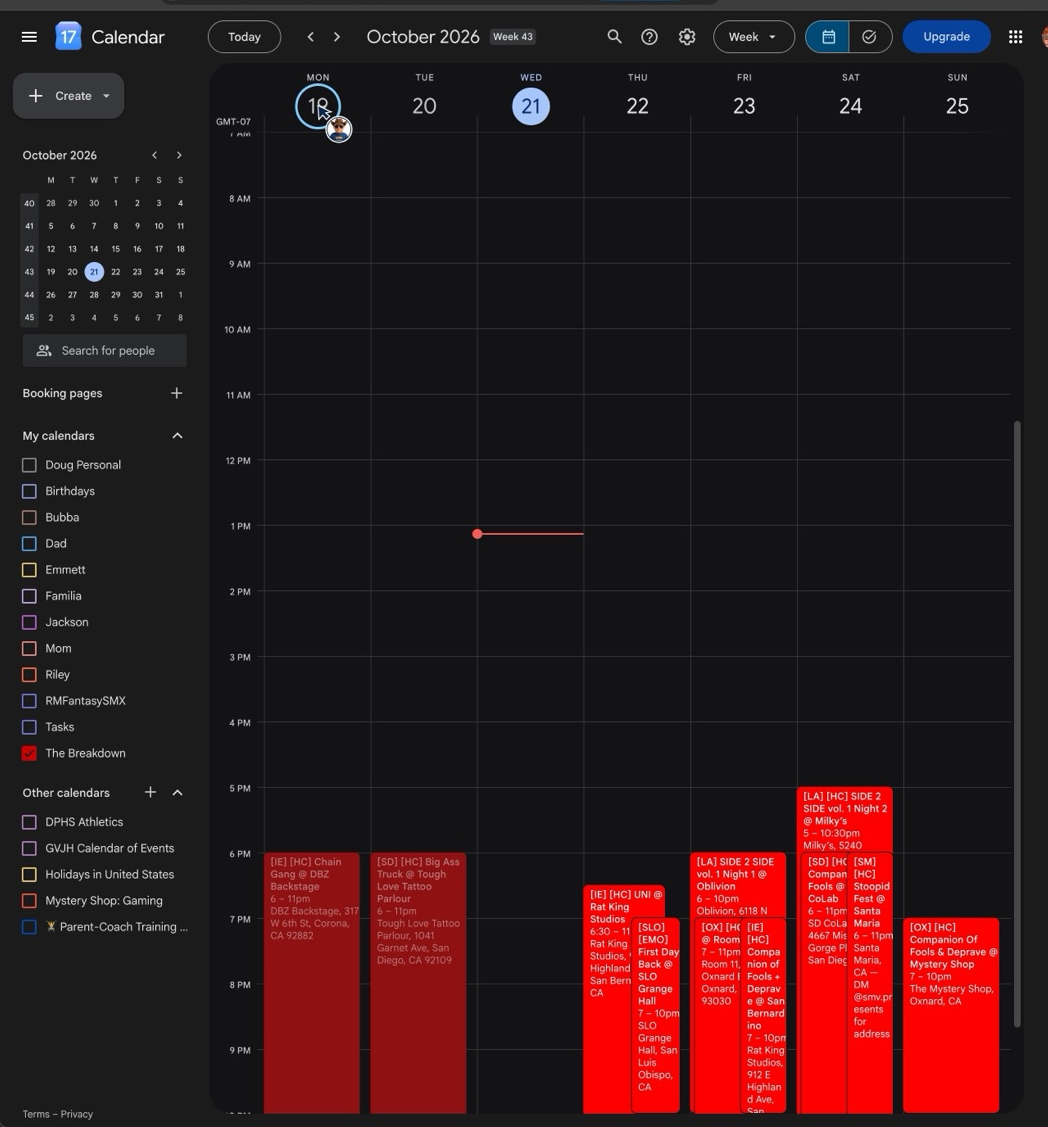
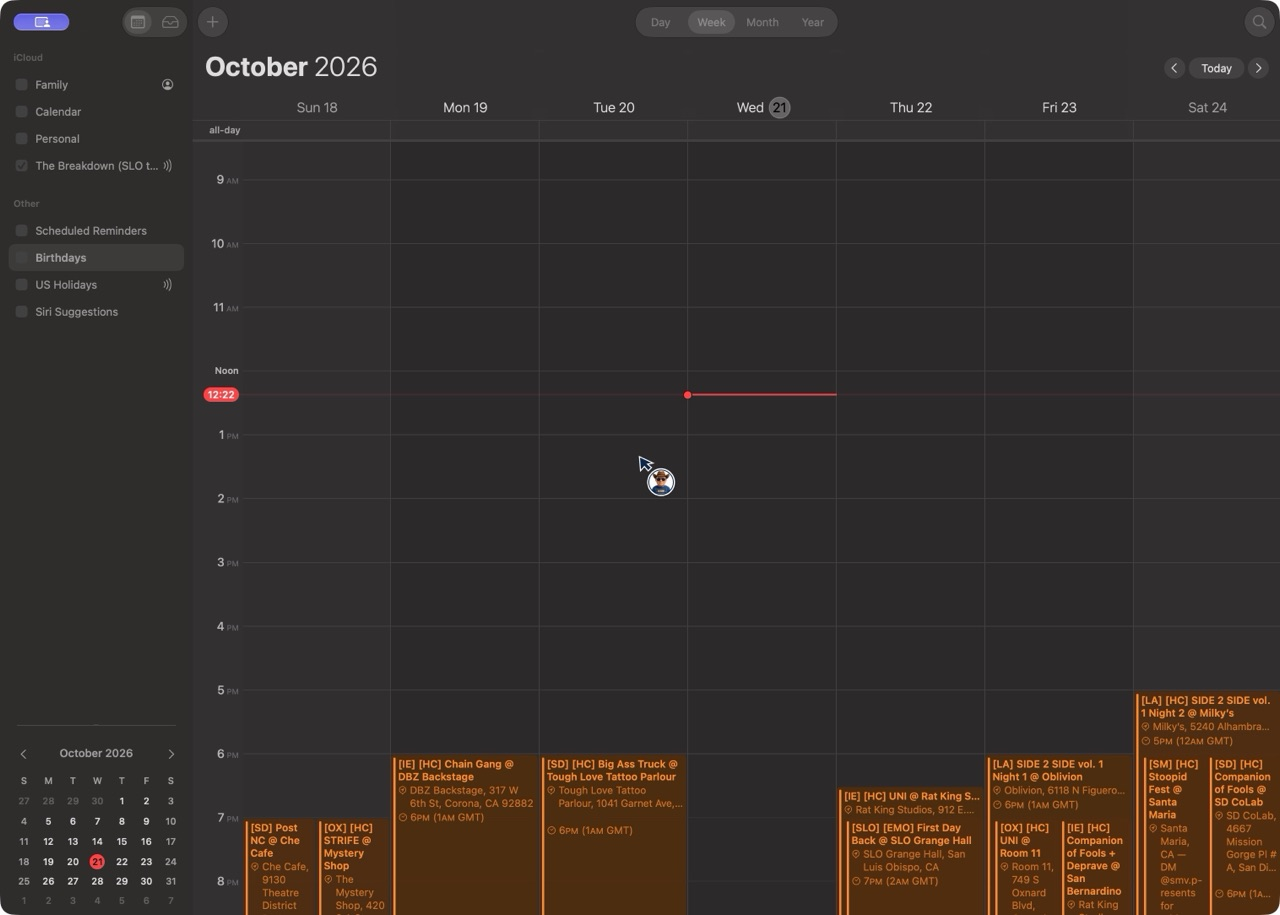
Apple Calendar
Subscribe in AppleiPhone / MacYour iPhone or Mac asks “Subscribe to The Breakdown?” — tap Subscribe, then Done. That’s the whole thing.
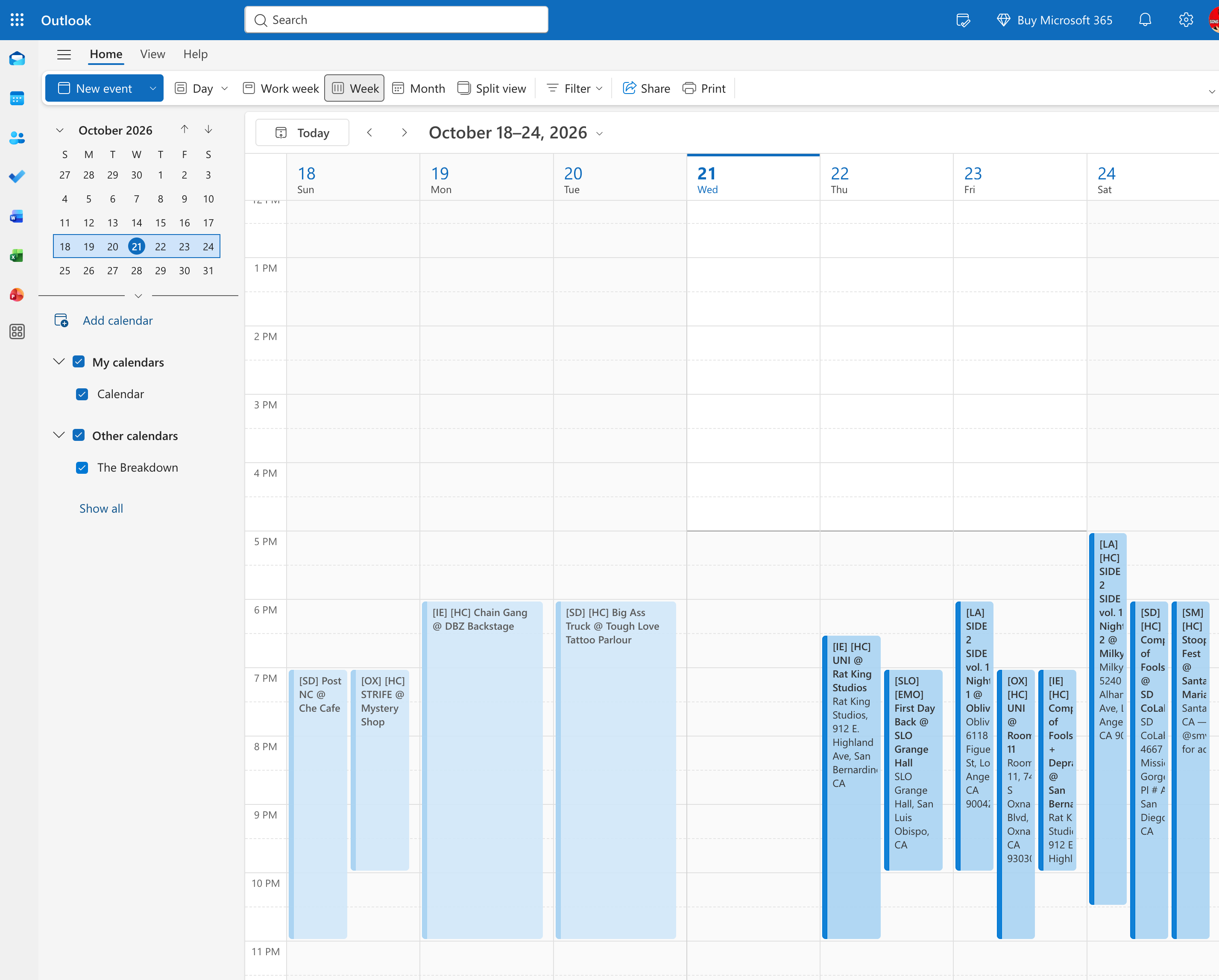
Outlook
Subscribe in OutlookOutlook.com / Microsoft accountOutlook opens with everything filled in — if it asks for a name, it’s The Breakdown. Hit Import and the shows land in your week.
Some other calendar app?
Download the .ics fileImport into any calendar appOr if your app has an “add by link / subscribe from web” spot, paste this link in there:
https://calendar.google.com/calendar/ical/5841f1e5f8bd0f815c4a3ae2ec1fec62f2002d287032cb3e041c09101354109f%40group.calendar.google.com/public/basic.ics
From @therainpocket — created by therainpocket.com. Free from therainpocket.com. No signup, no account, no app to install.